Managing SharePoint files inside Salesforce can often feel complicated when both systems work separately. With a powerful Salesforce SharePoint integration, businesses can unify their CRM and document management systems into one seamless workspace. This allows teams to access, manage, and share files without switching between platforms, improving productivity and collaboration.
Whether you are exploring a Salesforce Files Connect alternative or looking for a reliable Salesforce cloud storage integration solution, this guide will walk you through every aspect. From understanding its importance to choosing the right Salesforce AppExchange app like FilesToFolder, you’ll discover how to simplify file management and optimize your Salesforce experience effortlessly.

Table of Contents
-
Why Salesforce SharePoint Integration Is Required
-
Key Facts & Stats You Should Know
-
Salesforce SharePoint Integration Checklist
-
Integration Methods: API, MuleSoft & FilesToFolder
-
Introduction to FilesToFolder for Salesforce SharePoint Integration
-
FilesToFolder vs. Other Solutions: Which Should You Choose?
-
Benefits of Salesforce Cloud Storage Integration
-
Conclusion
Why Salesforce SharePoint Integration Is Required
Salesforce is the nerve center for leads, deals, and customer interactions. SharePoint powers document collaboration, file storage, and internal processes.
But when these platforms operate in silos, teams waste time, data gets messy, and workflows slow down. A Salesforce SharePoint integration solves this by connecting the CRM directly to a centralized document hub.
- Storage Cost Savings – Salesforce offers limited and costly storage, which can quickly become expensive as your data grows. SharePoint provides significantly higher storage at a much lower cost, making it a more scalable and budget-friendly solution for managing files.
- Overcoming Storage Limitations – Salesforce restricts file sizes and supported formats, which can slow down teams handling large or complex files. SharePoint removes these limitations by supporting bigger file sizes and a broader range of file types.
- Breaking Down Access Limitations – Without integration, only Salesforce users can access stored files, creating silos across teams. SharePoint integration allows all departments to access documents easily, improving collaboration and efficiency.
- Closing the Feature Gap – Salesforce lacks advanced document features like version control and flexible sharing. SharePoint enhances this with automatic version tracking and secure external sharing, ensuring better collaboration and data management.
Key Facts & Stats You Should Know
Before diving into the technical setup, here are some compelling numbers that underline the value of Salesforce SharePoint integration:
- SharePoint offers over 40× more storage than Salesforce at a fraction of the cost — $0.20/GB/month vs. Salesforce’s premium storage pricing.
- Maximum file size supported per upload in SharePoint document libraries — compared to Salesforce’s 2 GB limit.
- Files and folders supported per SharePoint document library, enabling massive-scale document management without performance issues.
- 68% of enterprises use both CRM and cloud document platforms simultaneously — yet fewer than 30% have a formal integration in place (IDC, 2024).
Salesforce SharePoint Integration Checklist
Step 1: Define Integration Objectives
Identify which data, workflows, and teams will be affected. Define whether you need one-way or two-way sync, which Salesforce objects require linked SharePoint folders, and what your data governance requirements are.
Step 2: Determine Functional Requirements
Engage daily Salesforce users — sales reps, support agents, managers — through surveys or workshops. Capture specific needs like one-click document access, automatic folder creation per record, or drag-and-drop file uploads from within Salesforce.
Step 3: Set Security & Access Controls
Involve IT, Legal, and Security teams early. Leverage SharePoint’s granular access controls, encryption, and compliance features. Map Salesforce permission sets to SharePoint access levels to maintain data integrity.
Step 4: Plan for Rollout & Scalability
Use a phased rollout — start with one team or object type (e.g., Opportunities), validate, then expand. Plan storage capacity, network bandwidth, and performance benchmarks for increased data volume.
Step 5: Setup & Maintenance
Assemble a cross-functional team of Salesforce admins and SharePoint administrators. Define a maintenance schedule, bug escalation path, and a user support channel. Document all configurations for future reference.
Step 6: Test & Validate
Run comprehensive tests covering data sync accuracy, permission enforcement, file association, folder auto-creation, and real-world user scenarios. Involve key stakeholders in UAT before go-live.
Step 7: User Training & Change Management
Prepare onboarding materials, video walkthroughs, and FAQ documents. Host live training sessions and create a feedback loop for ongoing improvement. A well-adopted integration delivers far greater ROI than one that users work around.
Integration Methods: API, MuleSoft & FilesToFolder
1. Custom API Development
Description:
A highly flexible approach that uses Salesforce REST APIs and SharePoint REST APIs to build a fully customized, two-way integration between both platforms.
Key Points:
- Automates file uploads from Salesforce to SharePoint
- Creates dynamic folders based on records like opportunities or accounts
- Syncs metadata from Salesforce fields to SharePoint
- Supports custom naming rules for better file organization
- Uses Salesforce Apex & Flow for advanced automation and logic
2. MuleSoft Integration
Description:
A scalable enterprise solution that connects Salesforce and SharePoint through MuleSoft’s integration platform, ideal for complex system ecosystems.
Key Points:
- Connects Salesforce with multiple systems (ERP, HR, DocuSign, Teams, etc.)
- Enables workflow automation across platforms
- Triggers multiple actions from a single Salesforce event
- Supports large-scale enterprise integration needs
- Ensures smooth data flow across the entire tech stack
3. FilesToFolder — The Recommended Salesforce Cloud Storage Integration
Description:
A simple, no-code Salesforce AppExchange solution that delivers fast and reliable Salesforce SharePoint integration without complex development.
Key Points:
- Easy setup with Salesforce Flow and AppExchange installation
- Automatically creates and organizes SharePoint folders
- Maps Salesforce data directly to SharePoint metadata
- No coding required for implementation
- Trusted Salesforce Files Connect alternative for scalable integration
- Reduces manual work and improves document management efficiency
FilesToFolder for Salesforce SharePoint Integration
FilesToFolder is a dedicated file storage and management app for Salesforce, purpose-built to create seamless integrations between Salesforce and external storage platforms including SharePoint, Google Drive, and OneDrive. Available on the Salesforce AppExchange, it goes far beyond what native tools offer — and is frequently cited as the leading Salesforce Files Connect alternative for teams that need more control, flexibility, and automation.
What Makes FilesToFolder Stand Out?
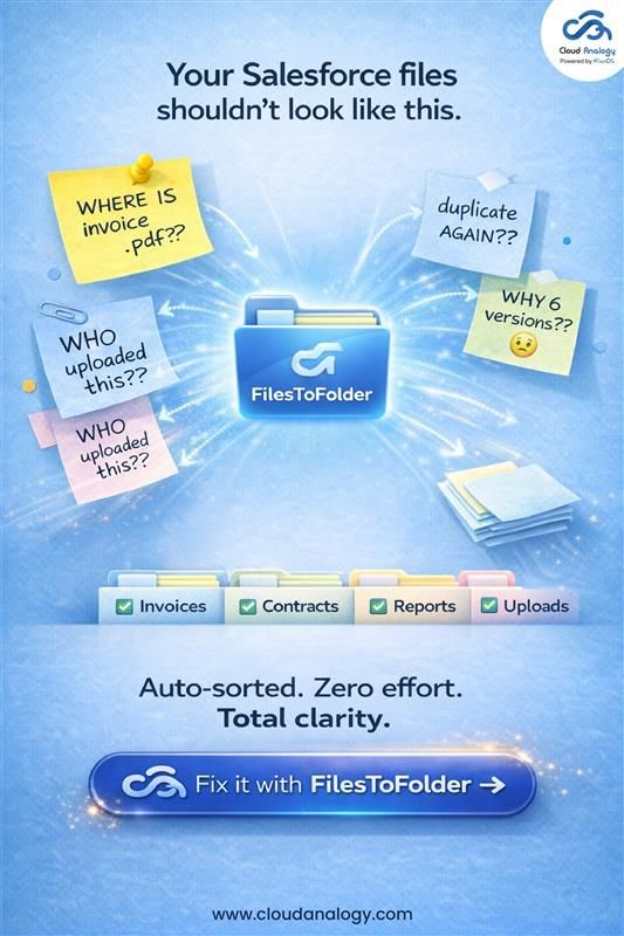
FilesToFolder automatically creates and maintains organized folder structures in SharePoint based on Salesforce record data. When a new Account, Opportunity, or Case is created in Salesforce, FilesToFolder can instantly provision the corresponding SharePoint folder hierarchy — no manual effort required.
Key capabilities include:
- Automatic folder creation based on Salesforce records (Account, Opportunity, Case, Contact, and custom objects)
- Two-way file sync: upload files in Salesforce, find them in SharePoint instantly — and vice versa
- Metadata mapping: Salesforce field values are written to SharePoint file metadata automatically
- Custom naming conventions and folder templates for consistent, searchable document organization
- Supports all Salesforce Clouds — Sales, Service, Experience, and more
- No-code configuration with Salesforce Flow compatibility for advanced automation
FilesToFolder vs. Other Solutions: Which Should You Choose?
Salesforce Files Connect is a native feature that allows users to view and link external files from SharePoint or Google Drive within Salesforce’s Files widget. It’s a solid, lightweight option for basic use cases. But it has clear limitations — and that’s where FilesToFolder stands out as a Salesforce Files Connect alternative.
| Feature | Other Solution | FilesToFolder |
| Auto Folder Creation | No | Yes |
| Metadata Sync | No | Yes |
| Custom Naming Rules | No | Yes |
| No-Code Setup | Partial | Full |
| Multi-Cloud Support | Yes | Yes |
| Advanced Automation | Limited | Flow + Apex |
| AppExchange App | Native | 5-star rated |
| Extra Cost | Included | Subscription based |
Choose FilesToFolder, the best Salesforce file management app when you need a full Salesforce cloud storage integration with automation, structured folder management, and metadata intelligence.
Benefits of Salesforce Cloud Storage Integration
- Cost Savings: Store large files in SharePoint instead of Salesforce to reduce storage costs.
- Enhanced Organization: Automatically create and maintain proper folder structures based on Salesforce records.
- Improved Productivity: Access and manage files directly in Salesforce without switching between platforms.
- Superior Version Control: Track changes and restore previous versions easily with SharePoint’s version history.
- Cross-Team Collaboration: Allow all departments to access files, even if they don’t use Salesforce.
- One Source of Truth: Keep all files in one place to avoid duplicates and confusion.
- Security & Compliance: Ensure data is safe and meets security standards across both platforms.
Conclusion
Managing files across disconnected systems can slow down operations, increase costs, and create inefficiencies. This is why Salesforce SharePoint integration is essential for modern businesses for smoother workflows and faster outcomes. By combining Salesforce’s CRM capabilities with SharePoint’s powerful storage and collaboration features, organizations can eliminate silos, reduce storage expenses, and enhance productivity.
From significant savings through Salesforce cloud storage integration to smarter automation with FilesToFolder, organizations now have practical and scalable solutions to improve productivity and collaboration. Whether your goal is cost optimization, better collaboration, or improved document management, adopting the right integration strategy will ensure long-term efficiency, scalability, and business growth.
Ready to get started? Book a demo with FilesToFolder today and see how effortless Salesforce SharePoint integration can be.