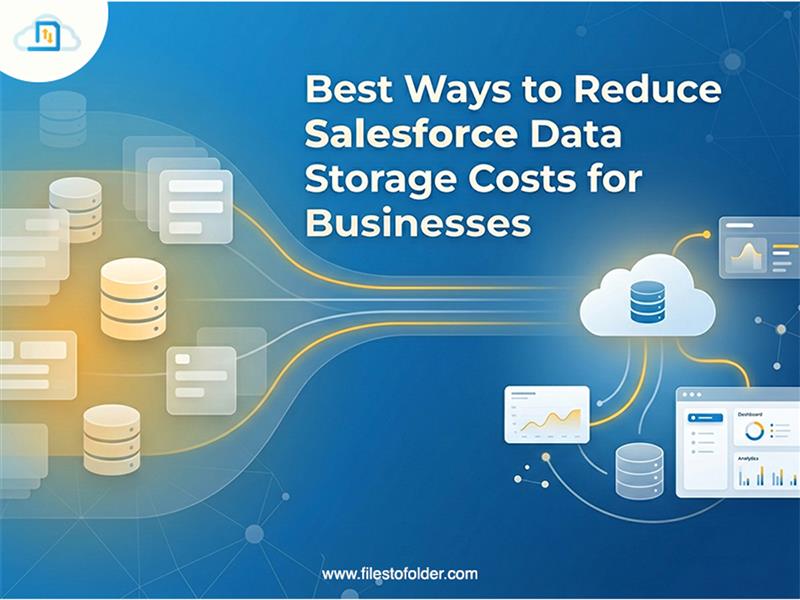
If you’re using Salesforce, you’ve likely seen this pattern: everything works perfectly in the beginning, but as your business grows, so does your data. More leads, attachments, emails, and documents quickly pile up—making it harder to Reduce Salesforce Storage Costs while maintaining performance.
Over time, organizations hit their Salesforce storage limit, leading to slower systems, rising costs, and inefficiencies. What starts as a manageable setup can turn into a costly challenge if not addressed early.
So, the real challenge is this: how can you reduce Salesforce storage costs without losing critical business data?
In this detailed guide, we’ll break down everything you need to know about Reduce Salesforce Storage Costs, along with practical strategies, cost comparisons, and modern AppExchange solutions like FilesToFolder—a powerful Salesforce External Storage Solution designed to keep your CRM lean, fast, and cost-efficient.
Table of Contents
- Understanding Salesforce Storage Types
- Salesforce Storage Limits Explained
- How to Check Your Storage Usage
- Salesforce vs External Storage (Cost Comparison)
- Best Ways to Reduce Salesforce Storage Costs
- FAQs
- Conclusion
Understanding Salesforce’s Three Storage Categories
To effectively Reduce Salesforce Storage Costs, you first need to understand how storage works.
1. Data Storage
This includes all your structured records like Leads, Contacts, Cases, Opportunities, and custom objects. These are the core data points of your CRM. Even though each record is small, they add up over time and count toward your overall Salesforce storage limit.
2. File Storage
This is where all your files are stored—PDFs, images, contracts, and email or Chatter attachments. In most cases, this is the main reason behind storage issues. That’s why Salesforce File Storage Management is so important, especially for teams that frequently upload and share documents.
3. Big Objects
Big Objects are used to store large amounts of historical data like old records, logs, or archived information. They are designed for data that you don’t need to access often. The good part is that they don’t count against your regular Salesforce storage limit, making them useful for long-term storage.
Salesforce Storage Limits Explained
Storage allocation depends on your edition and user count. Here’s how the base limits break down across the most common Salesforce plans:
1. Base Storage by Edition
| Edition | Data Storage | File Storage |
| Essentials | 10 GB | 1 GB |
| Professional | 10 GB | 10 GB |
| Enterprise | 10 GB | 10 GB |
| Unlimited | 10 GB | 10 GB |
2. Additional Per User
- Data Storage: +20 MB/user
- File Storage: +2 GB/user
Example: For 50 users (Enterprise):
- Data: ~11 GB
- Files: ~110 GB
How to Check Your Salesforce Storage Usage
To stay in control of your Salesforce File Storage Management:
Go to Setup → Storage Usage
Review:
- Total storage available
- Used vs remaining storage
- Top storage-consuming objects
- User-level breakdown
Regular monitoring helps prevent surprises and keeps your storage optimized.
Salesforce vs. Amazon S3: Cost Comparison You Need to See
When evaluating a Salesforce external storage solution, the numbers speak for themselves. Here’s a direct comparison of what you’re paying for storage inside Salesforce versus offloading files to AWS S3:
| Storage Metric | Salesforce File Storage | Amazon S3 Standard | Final Verdict |
| Cost per GB / month | ~$5.00 | ~$0.023 | S3 is 200× cheaper |
| 100 GB of files | ~$500/mo | ~$2.30/mo | S3 saves ~$497/mo |
| 1 TB of files | ~$5,000/mo | ~$23/mo | S3 saves ~$4,977/mo |
| Data retrieval | Native, instant | Via app/integration | Salesforce wins on UX |
| Compliance/retention | Limited archiving tools | Flexible lifecycle rules | Salesforce wins natively |
Best Ways to Reduce Salesforce Storage Costs
1. Clean Up and Delete Unnecessary Data
The quickest way to free up space is to remove data you don’t need anymore.
Start by identifying old records, duplicate files, unused attachments, and leads that haven’t been updated in years.
You can use Salesforce’s Mass Delete tool for small cleanups. For larger data, you may need tools or automation (like Apex jobs) to delete in bulk.
Pros
- Frees up space instantly
- No extra cost
- Makes your system simpler
️ Cons
- Deleted data cannot be recovered
- Not suitable for industries that must keep data
- Not a long-term solution
2. Compress Files Before Uploading
You can save space by reducing file size before uploading to Salesforce.
For example, convert files into ZIP, compress PDFs, or reduce image size.
This works well for small cleanups or one-time efforts but is hard to maintain regularly.
3. Move Old Data to External Storage
Instead of deleting important data, you can move it outside Salesforce.
This is called data archiving.
You can store:
- Old data that is rarely used
- Data you must keep for legal or compliance reasons
With a good external storage solution, you can still access this data from Salesforce when needed.
4. Use a Salesforce File Management App
The easiest long-term solution is to use a dedicated app from AppExchange.
These apps:
- Help organize files better
- Automatically move or manage data
- Reduce storage usage without manual work
This way, your team gets a smooth experience while keeping storage costs under control.
“Salesforce should act as your control tower, not your storage warehouse. The smartest organizations separate operational data from heavy file storage to scale efficiently.” – Prince Amzad Khan, Product Officer, Cloud Analogy
Introducing FilesToFolder – Your Salesforce Storage Problem, Solved
To make external storage work seamlessly, you need a native app that integrates directly with Salesforce.
FilesToFolder is a native Salesforce AppExchange app that centralizes your file handling, reduces upload friction, and gives every record a clean, organized folder structure — all without leaving Salesforce. Teams that switch report faster uploads, fewer storage overruns, and a dramatically cleaner org.
Key Capabilities to Look For:
- Drag-and-drop file uploads
- Bulk upload support
- Centralized file access
- Structured folder system
- Lightning-compatible UI
Final Wrap
Managing Salesforce storage isn’t just about saving space—it’s about improving performance, reducing costs, and scaling efficiently. As your business grows, relying only on native storage becomes expensive and limiting.
By combining cleanup strategies, compression, and a smart Salesforce External Storage Solution, you can effectively Reduce Salesforce Storage Costs while maintaining full data accessibility. The key is to treat Salesforce as a system of action—not a storage dump.
Ready to Reduce Salesforce Storage Costs With a modern solution? If you’re serious about optimizing Salesforce File Storage Management and staying within your Salesforce storage limit, it’s time to adopt a smarter approach. FilesToFolder helps you organize, access, and manage files efficiently while reducing storage dependency inside Salesforce. Improve performance, boost productivity, and cut costs—all with a seamless user experience.
Book a demo today and discover how you can transform your Salesforce File Storage Management strategy with ease.